
Using the extension for the first time
Tutorial for first-time users
This tutorial will guide you on the basic functionalities of the JNLP Runner extension. We assume you have installed the extension on Chrome or Edge.
Running a JNLP file

To start an application, you need to run a JNLP file. You can do this by clicking on a link or opening a file with a JNLP extension or by dragging and dropping a JNLP file into the extension popup.
Before using the extension
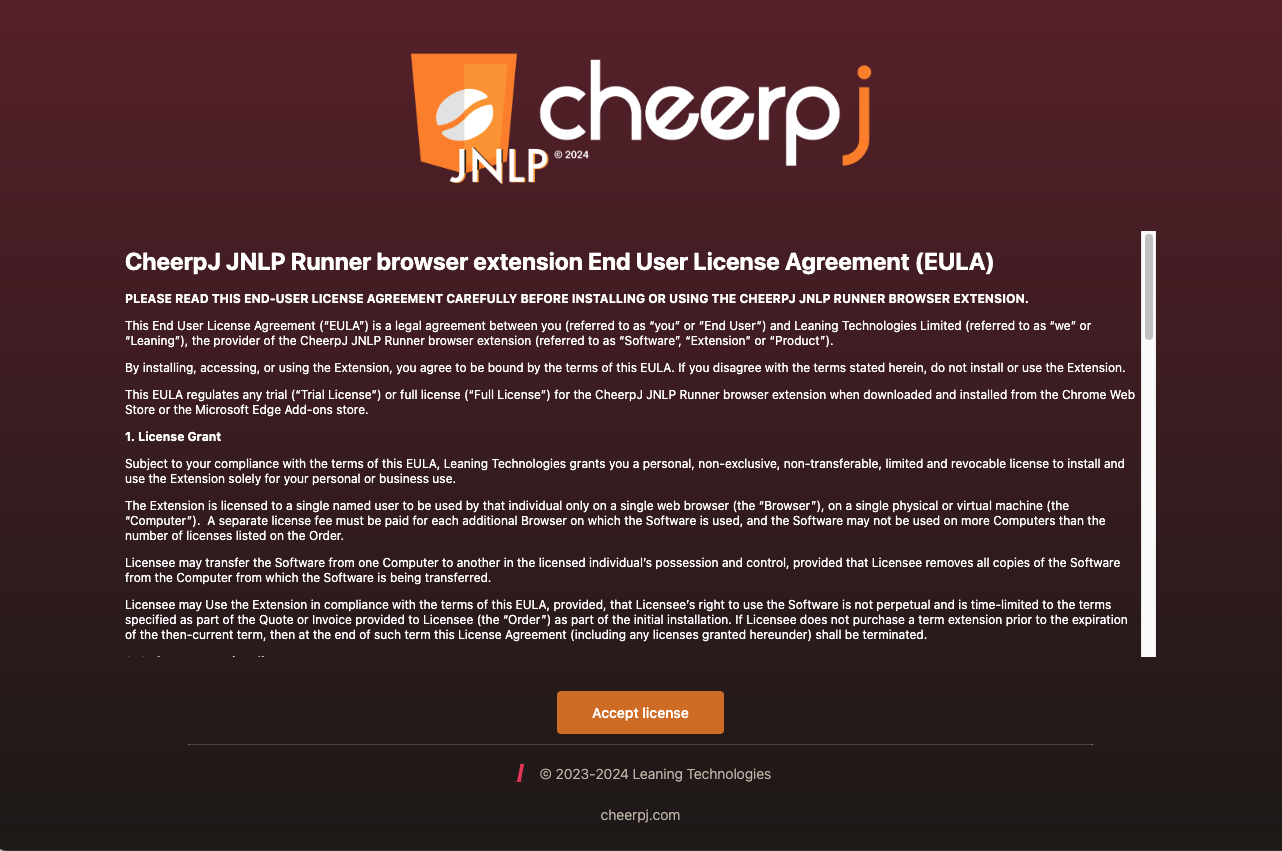
The first time you launch a JNLP file to run a Java application, the JNLP Runner will automatically detect it and it will start running. The first screen you will see is the license agreement. Please read this carefully and if you agree with the terms and conditions, click on Accept license.
You can read the full license agreement here .
.
The side panel
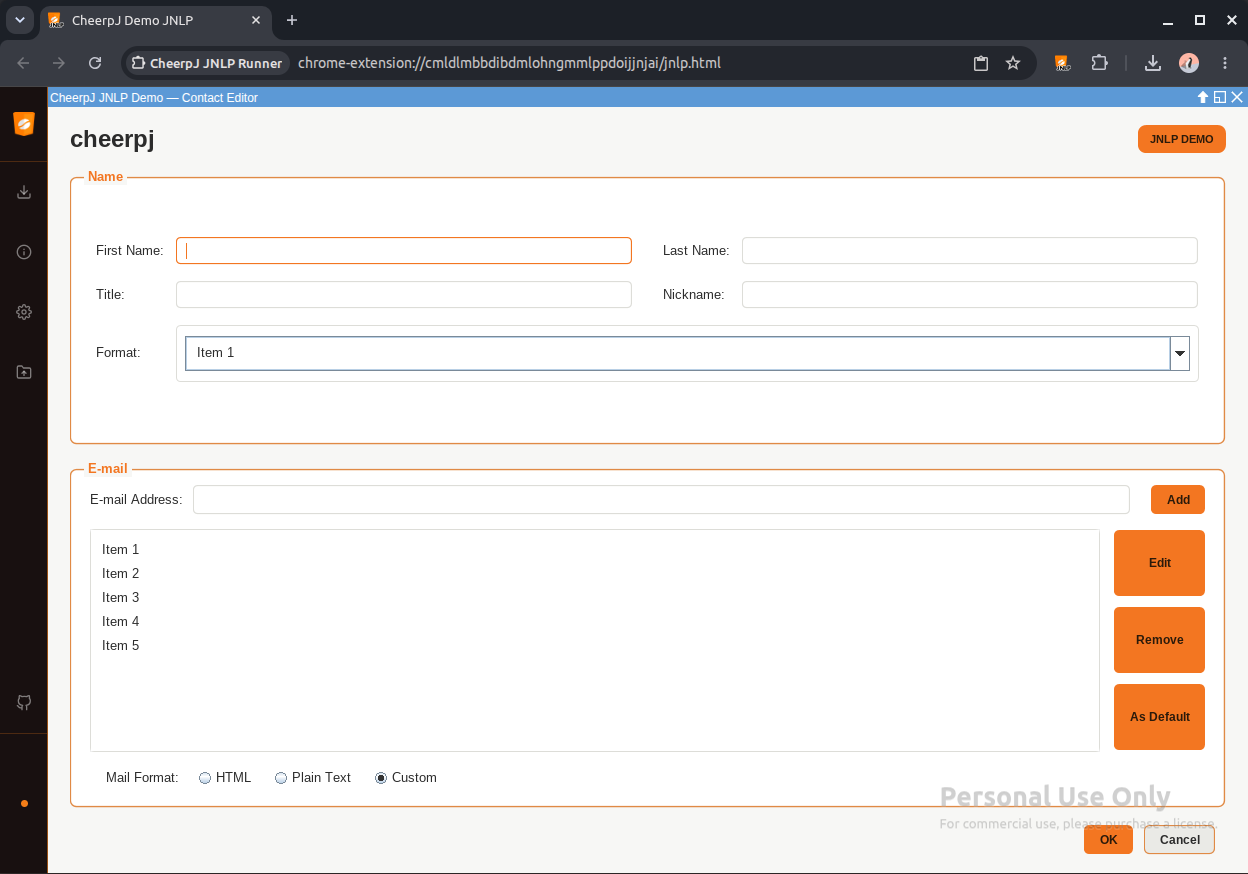
When a JNLP file is launched in the browser, the application starts automatically and a side panel appears on the left side of the screen. Hover over the panel to expand it.
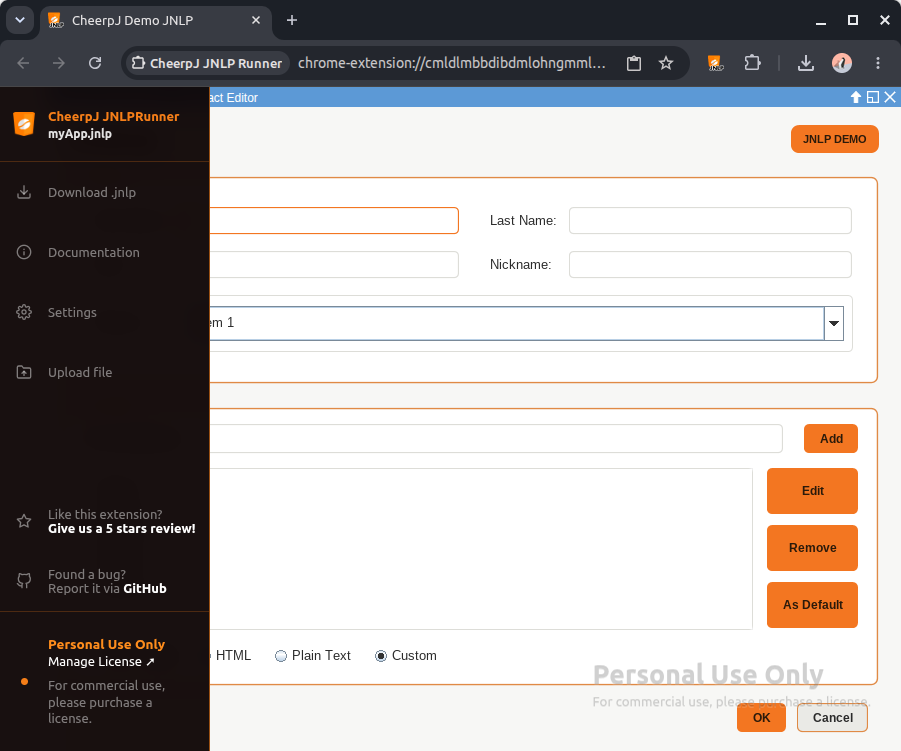
The side panel provides quick access to the following:
Download .jnlp
Downloads the currently running JNLP file directly to your machine.
Settings
Opens the extension settings, where you can configure advanced options such as enabling a Tailscale proxy for socket connections and other runtime options.
Upload file
Uploads a local file to the CheerpJ virtual filesystem, making it accessible to the running Java application under /files/uploads/. This is useful for applications that need to read local files. For more information, see the virtual filesystem docs.
Manage license
Click this link to activate your license key or token. For more information, see the Activate your license tutorial.