Activate your licence
Activate a Desktop or Enterprise licence in the extension
Business use of the extension needs a licence: see licensing. There are two ways to activate one:
- Licence key, for a Desktop licence bought online, for 1 to 20 desktops. See activate with a licence key.
- Licence token, for technical evaluations and Enterprise licences. A token activates offline, with no contact with our licence server. See activate offline with a licence token.
With an Enterprise licence, desktop administrators can also set the token for every desktop by policy, so users activate nothing. See configure the extension for enterprises.
Activate with a licence key

Buy a licence key
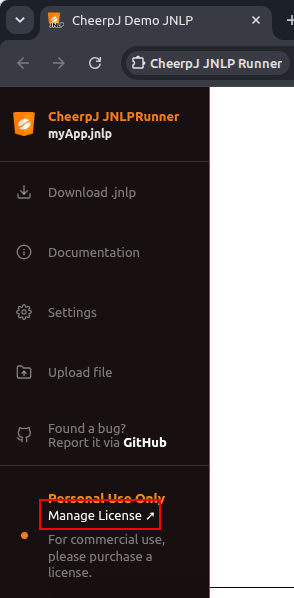
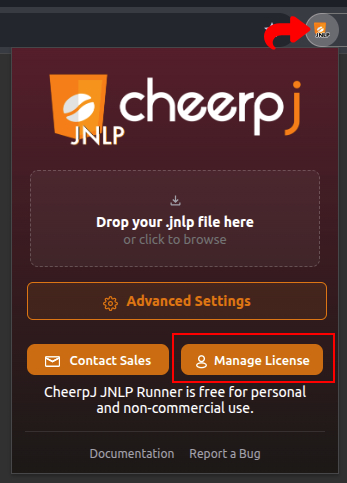
Click Manage License in the extension’s popup, or in the side panel next to a running application.
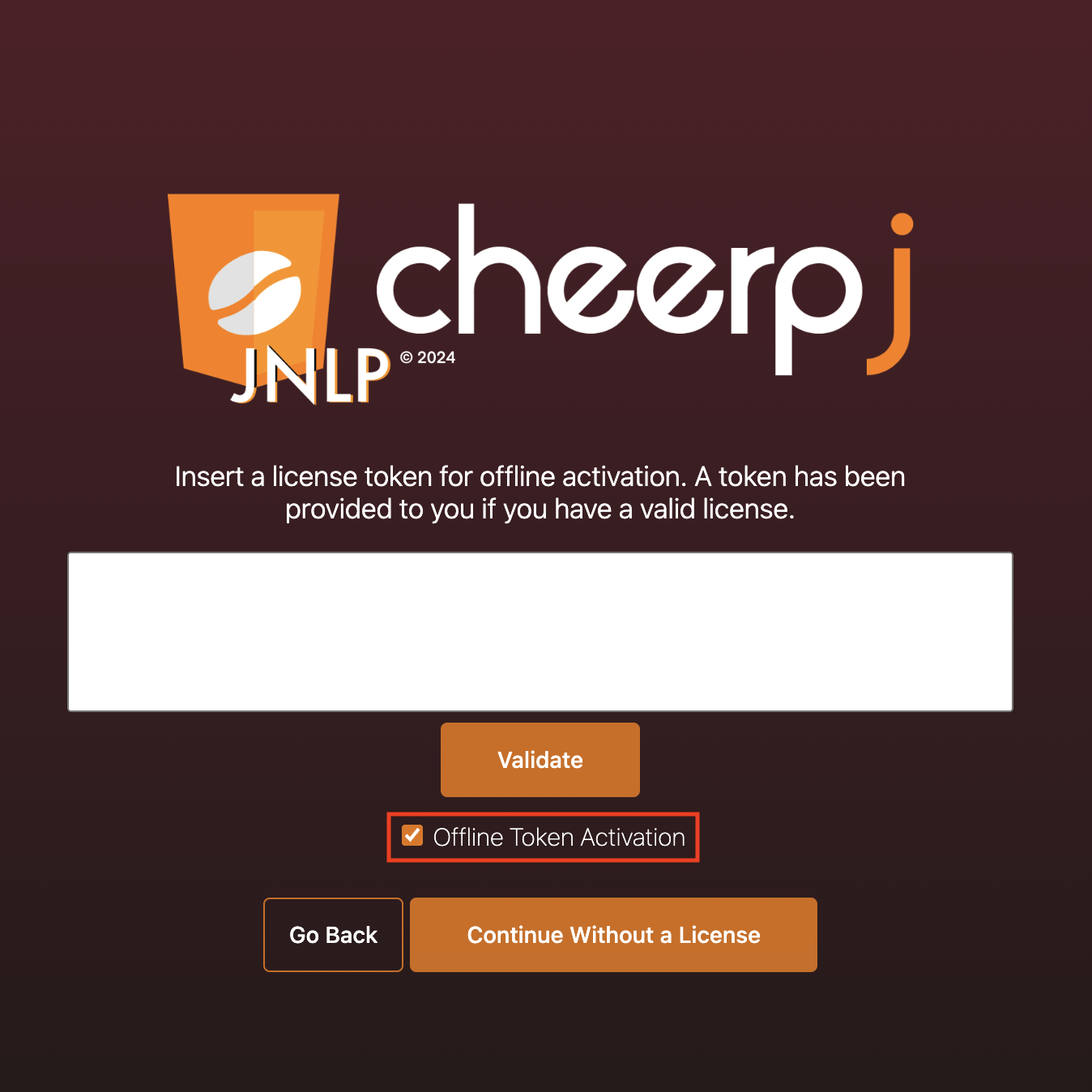
The licence screen opens, where you enter a key or a token. If you don’t have a key yet, click the link to buy one.

Enter the key
The link opens the Leaning Technologies shop, where you buy a Desktop licence for 1 to 20 desktops.
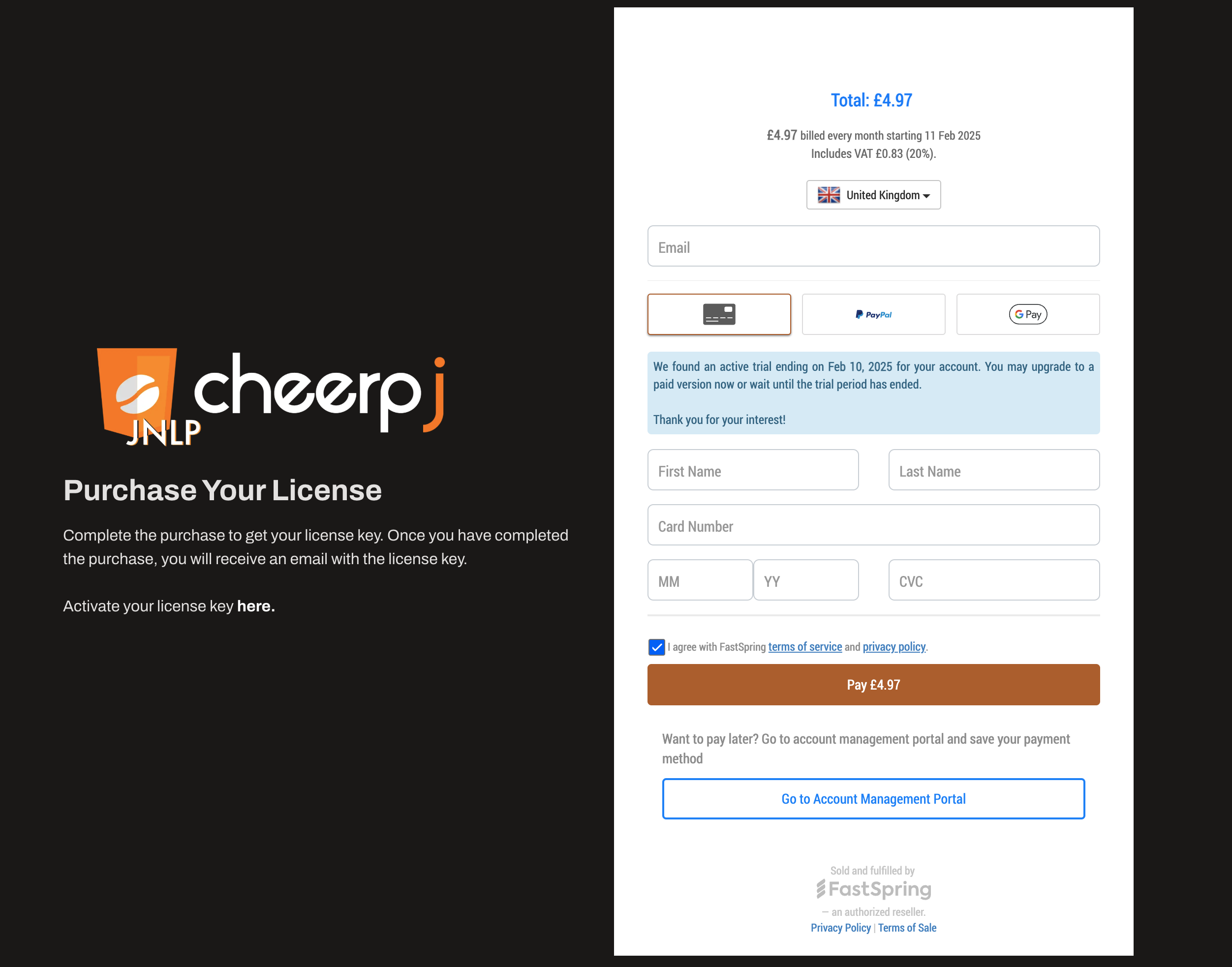
Once you have paid, the shop shows your licence key and emails it to you. Copy the key, go back to the extension and click Enter License.

With Key selected, paste the key into the field.
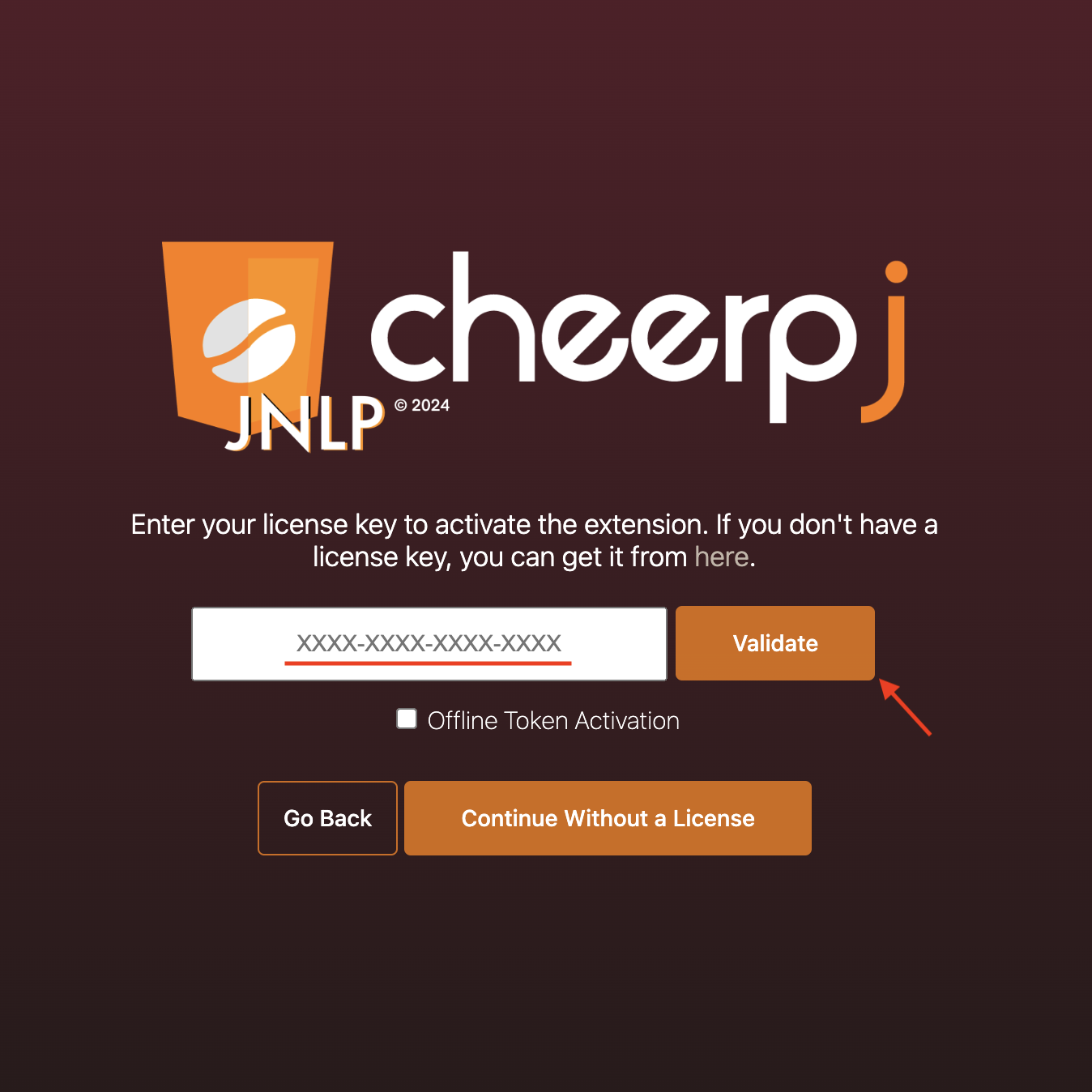
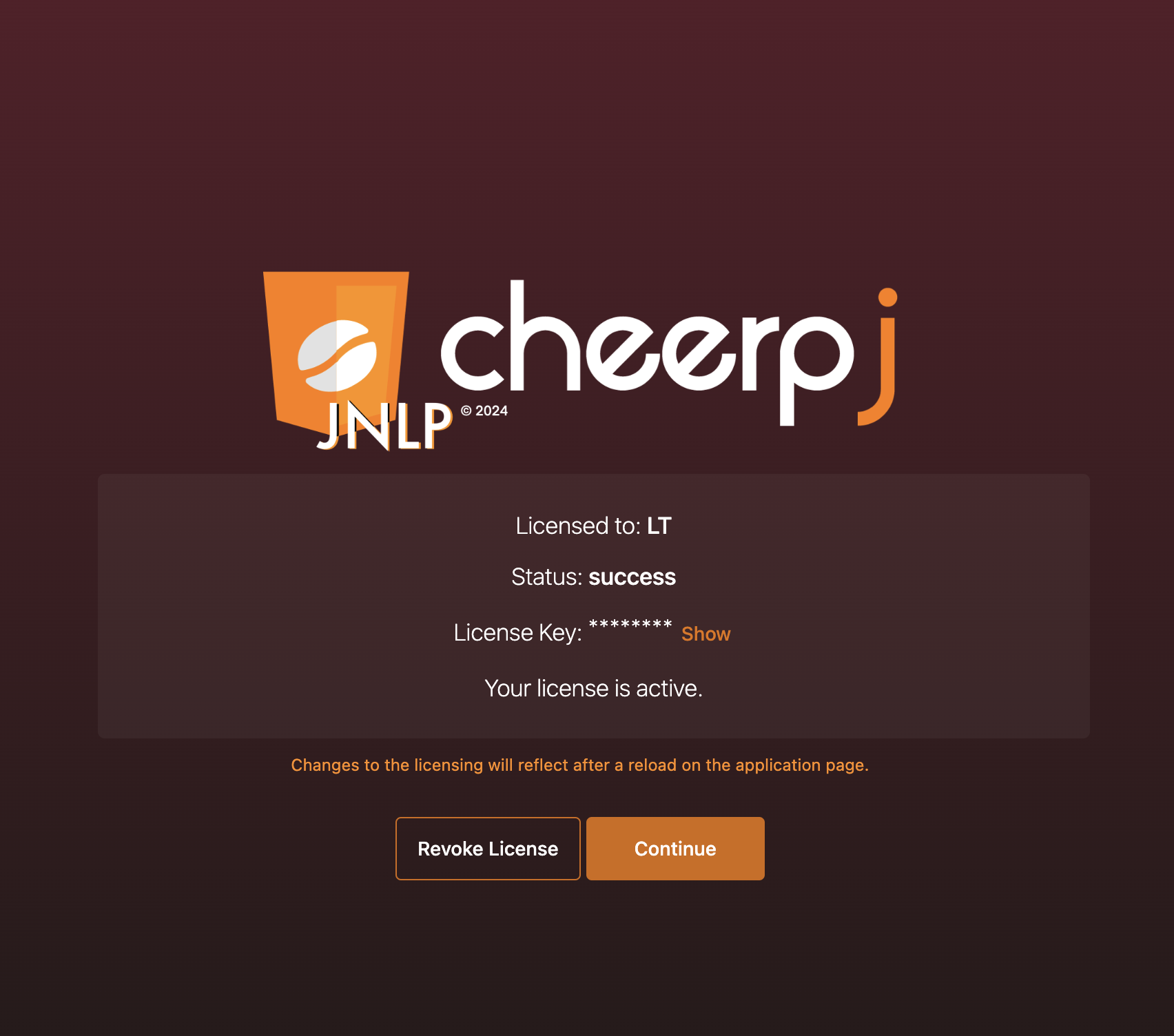
Click Validate. The extension checks the key with our licence server, and shows a message once it is valid.
Activate offline with a licence token
We send you a licence token for a technical evaluation or an Enterprise licence. Click Manage License, then Enter License. Select Token, paste the token and click Validate. The extension checks the token itself, with no contact with our licence server.