
Chrome Installation
Install the CheerpJ browser extension for Java Web Start in Chrome
This page takes you through installing the CheerpJ browser extension for Java Web Start in Chrome.
Add to ChromeStep 1

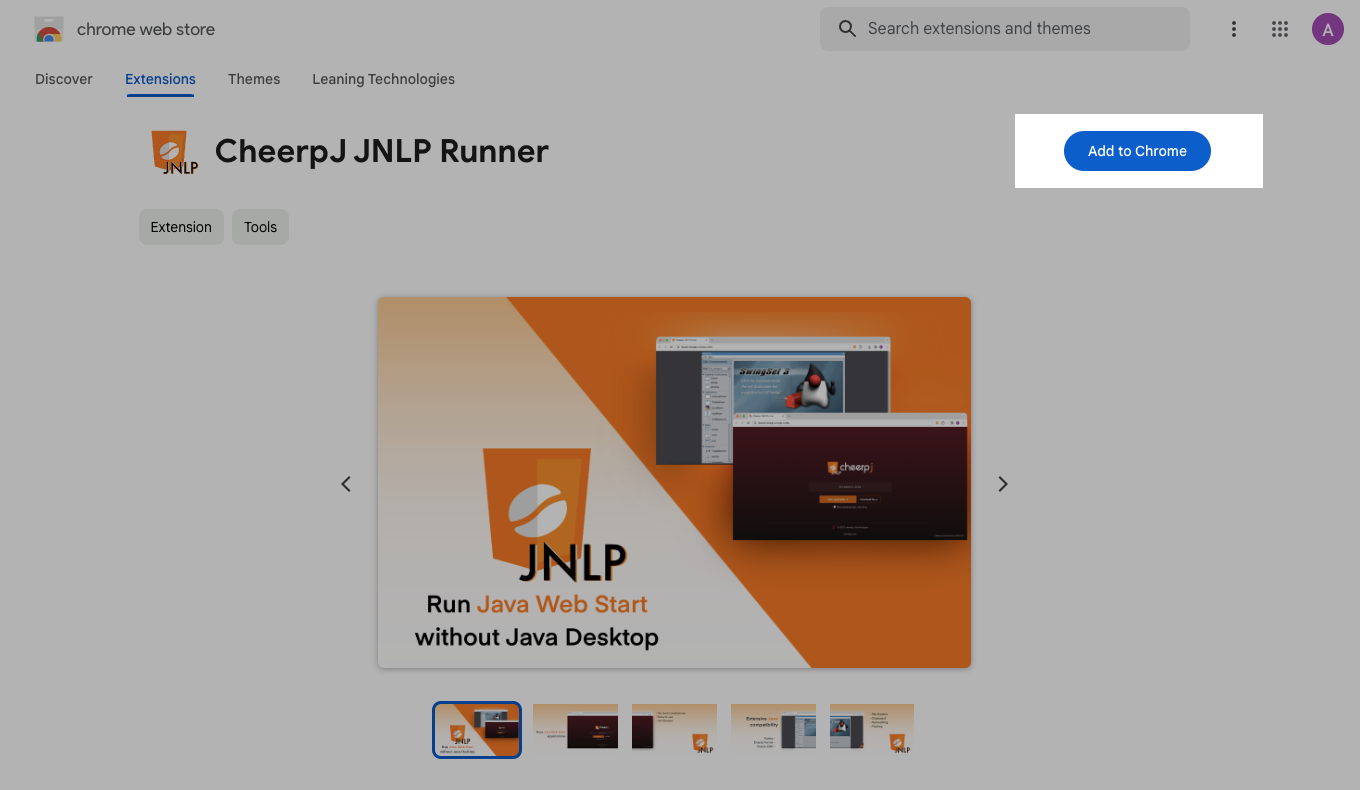
Go to the extension’s page in the Chrome Web Store and click Add to Chrome.
Chrome asks you to let the extension manage your downloads. Click Add extension.
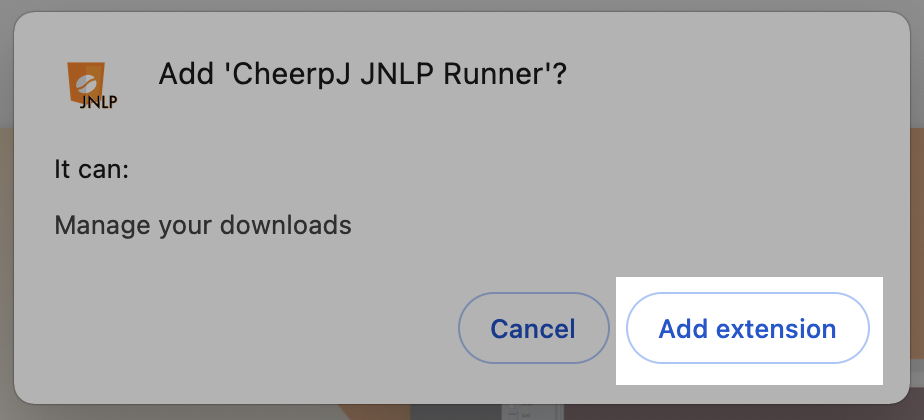
About the downloads permissionA Java Web Start application starts when the browser downloads its .jnlp file. The extension watches for those downloads: when one starts, it stops the download and runs the application in a new tab instead. It leaves other downloads alone.
Step 2
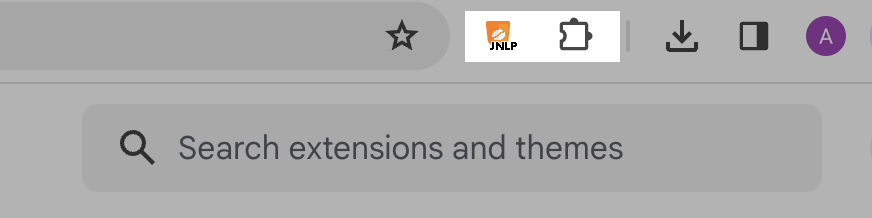
Once the extension is installed, its icon appears to the right of the address bar. If it isn’t there, click the puzzle-piece icon to list your extensions, and pin the extension so it stays in the toolbar.
Next
Run your first application. If you use the extension for work, activate your licence.