
How to debug the extension
How to enable debug mode and collect logs for troubleshooting
If you encounter issues while running an applet with CheerpJ Applet Runner, enabling Debug Mode can provide detailed logs that help our support team identify the problem.
Verifying the Extension is Working

Before enabling debug mode, let’s verify if the extension is active and processing the page:
- Is the extension pinned? Ensure the CheerpJ Applet Runner is pinned to your browser’s toolbar so you can easily access it.
- Is the extension enabled? Check your browser’s extensions page (
chrome://extensionsoredge://extensions) to confirm it is toggled on. - Is it turned on for the current website? Click the extension icon in your toolbar and make sure the main toggle for the domain is set to On.
- Is there an Applet and does it start? Make sure the webpage actually contains a Java Applet and that it attempts to load.
- Are there any Network errors? Open the browser’s developer tools and check the Network tab for failing requests.
If everything above is functioning correctly but you are still experiencing issues, please reach out to us on our Discord server or by opening an issue on our GitHub repository so we can assist you. To help us troubleshoot, please enable debug mode as described below and provide the resulting logs.
Enabling Debug Mode
To enable the debug build of CheerpJ:
-
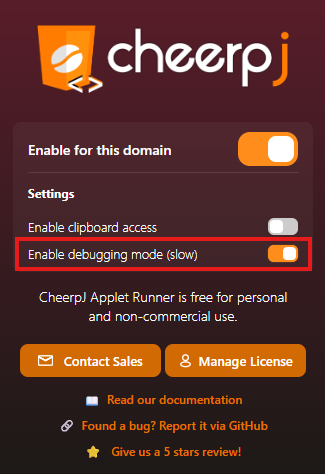
Click the CheerpJ Applet Runner icon in your browser’s toolbar.
-
In the popup page, toggle the “Enable debugging mode” switch to On.
-
The extension will now use the debug version of the runtime, which includes extensive logging.
Reload RequiredYou must enable the debugging mode before loading your application, or reload the page after enabling it. Otherwise, the setting will not take effect.
Collecting Debug Information
To help us troubleshoot, we typically need two files: the Console log and a Network HAR file.
Step 1: Open Browser DevTools
To ensure we receive complete logs, you must either reload the page after opening the developer tools, or enable the extension only after the developer tools are open.
- Press
F12(Windows/Linux) orCmd + Opt + I(Mac) to open the DevTools. - Alternatively, right-click anywhere on the page and select Inspect.
Step 2: Save the Browser Console Output
- With the developer tools open, navigate to the Console tab. (If you don’t see it, click the
+symbol in Edge or>>in Chrome, then select Console). - If needed, trigger the error in your application.
- Right-click on any message in the console tab and select Save as…
- Save the console log to a file.
Step 3: Extract a HAR File
A HAR (HTTP Archive) file logs your browser’s network interactions and helps us diagnose loading or server responses.
- In the developer tools, navigate to the Network tab.
- Reload your page (or navigate to the applet) to ensure the network log captures requests from the very beginning.
- Trigger the error in your application if needed.
- Click the download icon (
↓) at the top right of the Network tab to export and save the HAR file.
Once you have collected these files, please attach them to your support request or bug report on our Discord server or GitHub repository.