
Upload and download files
How to interact with the local filesystem using the Applet Runner extension
For a deeper dive into how file systems work in CheerpJ, check out the File System explanation guide .
.
The CheerpJ Applet Runner extension provides a virtual filesystem that allows Java applets to read and write files within the browser’s sandbox. Since browsers cannot access your local disk directly for security reasons, CheerpJ provides two main ways to move files into and out of this virtual space.
Uploading files

To import a file from your local machine to the virtual filesystem, you can use either the built-in file picker or the extension popup. In both cases, the files will be placed in the /files/uploads/ virtual directory. Inside the Java applet, you can navigate to /files/uploads/ to open or use these files.
Using the built-in file picker:
The upload icon (an upward arrow) is present as part of the title bar on any Java window, frame, or File Dialog that opens.
Undecorated Applet framesThe main Applet frame is normally undecorated, meaning it will not have a title bar. If the applet does not open any additional windows or file dialogs that have a title bar, you will need to use the extension popup to upload files.
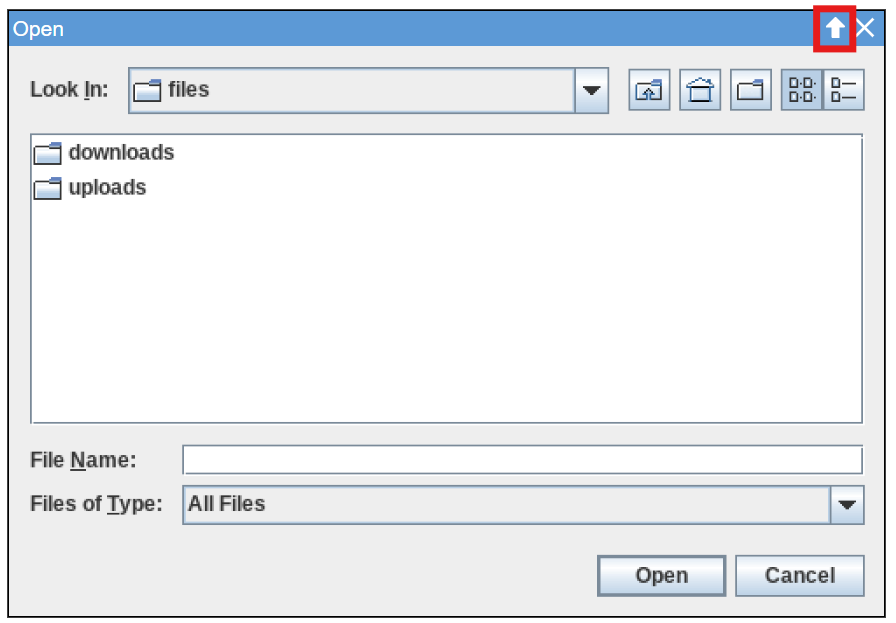
- Click the upload icon in the title bar.
- Select a file from your local file system (your machine).
- In the File Dialog, navigate to
/files/uploads/and select the file to load it into the applet.
Using the extension popup:
Alternatively, you can upload files directly from the extension popup.
Pin the extensionIf you cannot see the extension popup icon, you may need to pin the extension to your browser’s toolbar.
-
Ensure the Java applet is currently running.
-
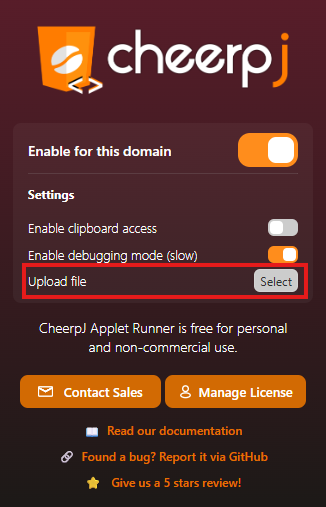
Click the CheerpJ icon in your browser’s toolbar and click the Upload button.
-
Select the file(s) from your local filesystem.
Downloading files
To export data from the Java applet back to your local machine, simply ensure files within the applet are saved to the /files/downloads/ virtual directory. Any file saved to this directory will be automatically detected and downloaded by your browser to your local machine (usually to your default Downloads folder).
Using a standard save dialog:
If you use a “Save” File Dialog and choose a path under /files/downloads/, the browser will automatically trigger a download once the save operation is complete.